
All setup guides
Walkthrough
Squarespace, step by step
Add the Zorren snippet to your Squarespace site so every enquiry lands on your list. Watch the video, or follow the annotated steps below.
First, open your Squarespace account and go to your site editor.
Follow the steps in order. Click any screenshot to see it full size.
- 1
Copy your Zorren snippet using the Copy button in the code box.
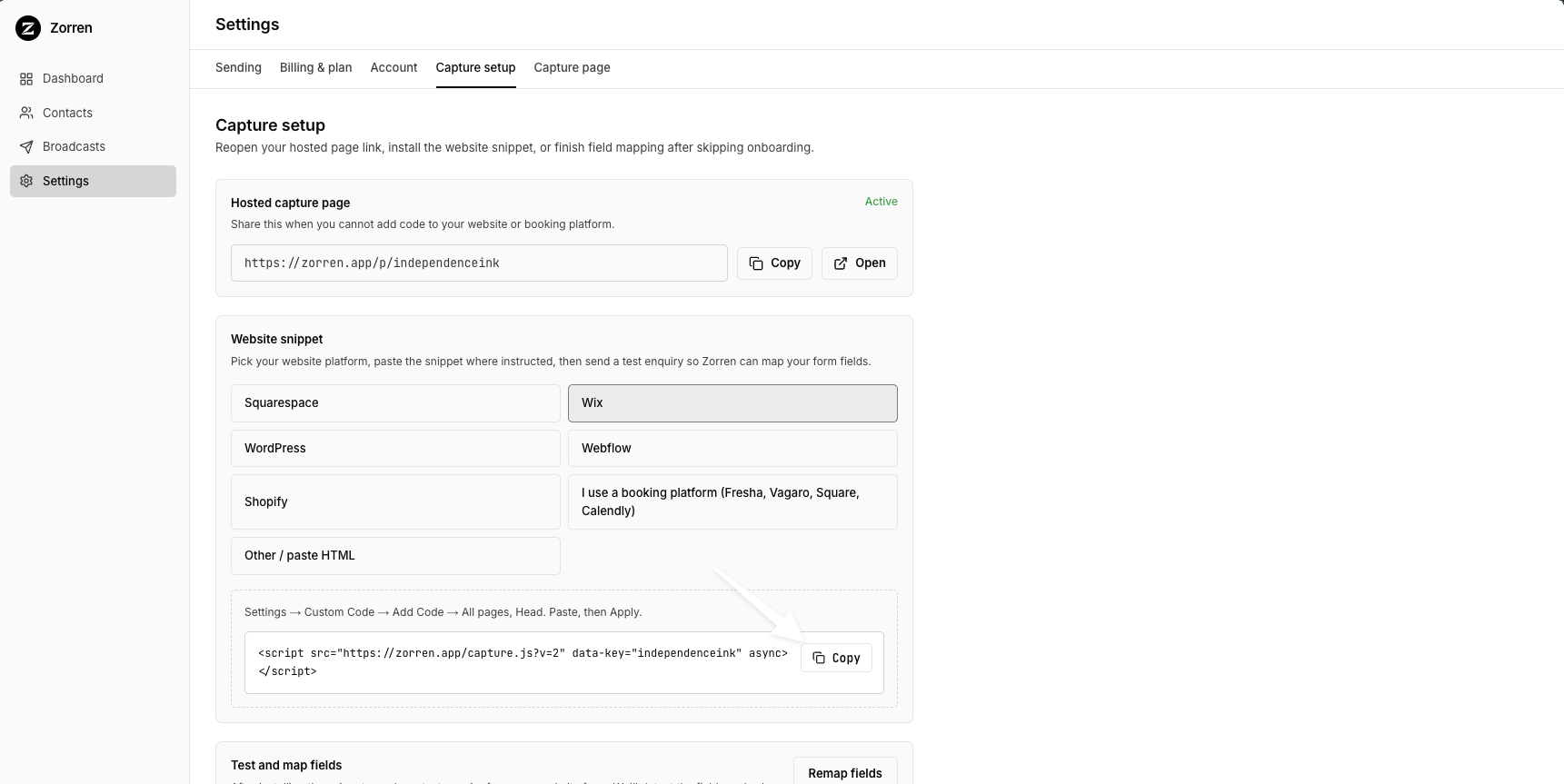
- 2
In your Squarespace editor, open Website, then click Pages.
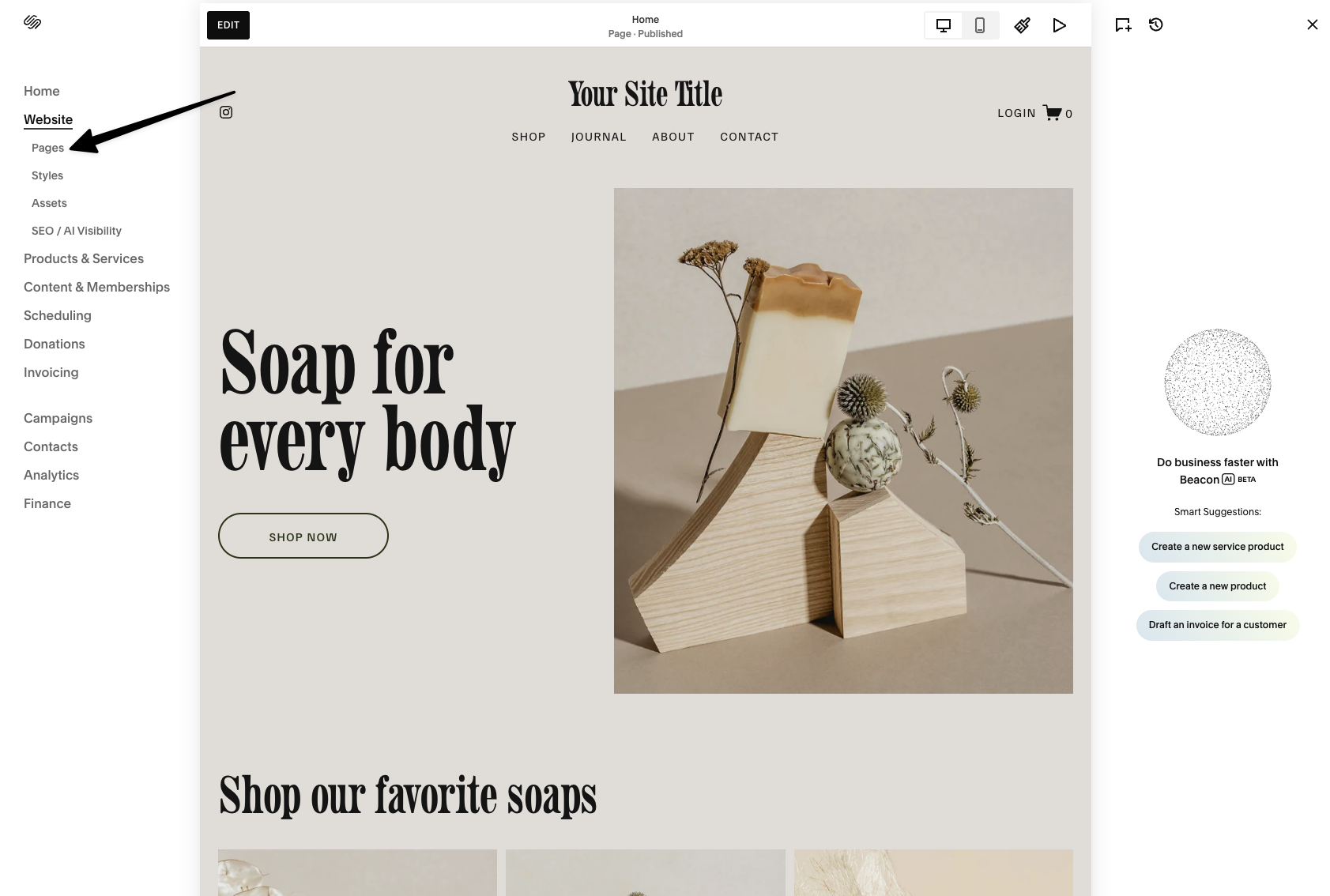
- 3
Scroll to the bottom of the Pages panel and open Custom Code.
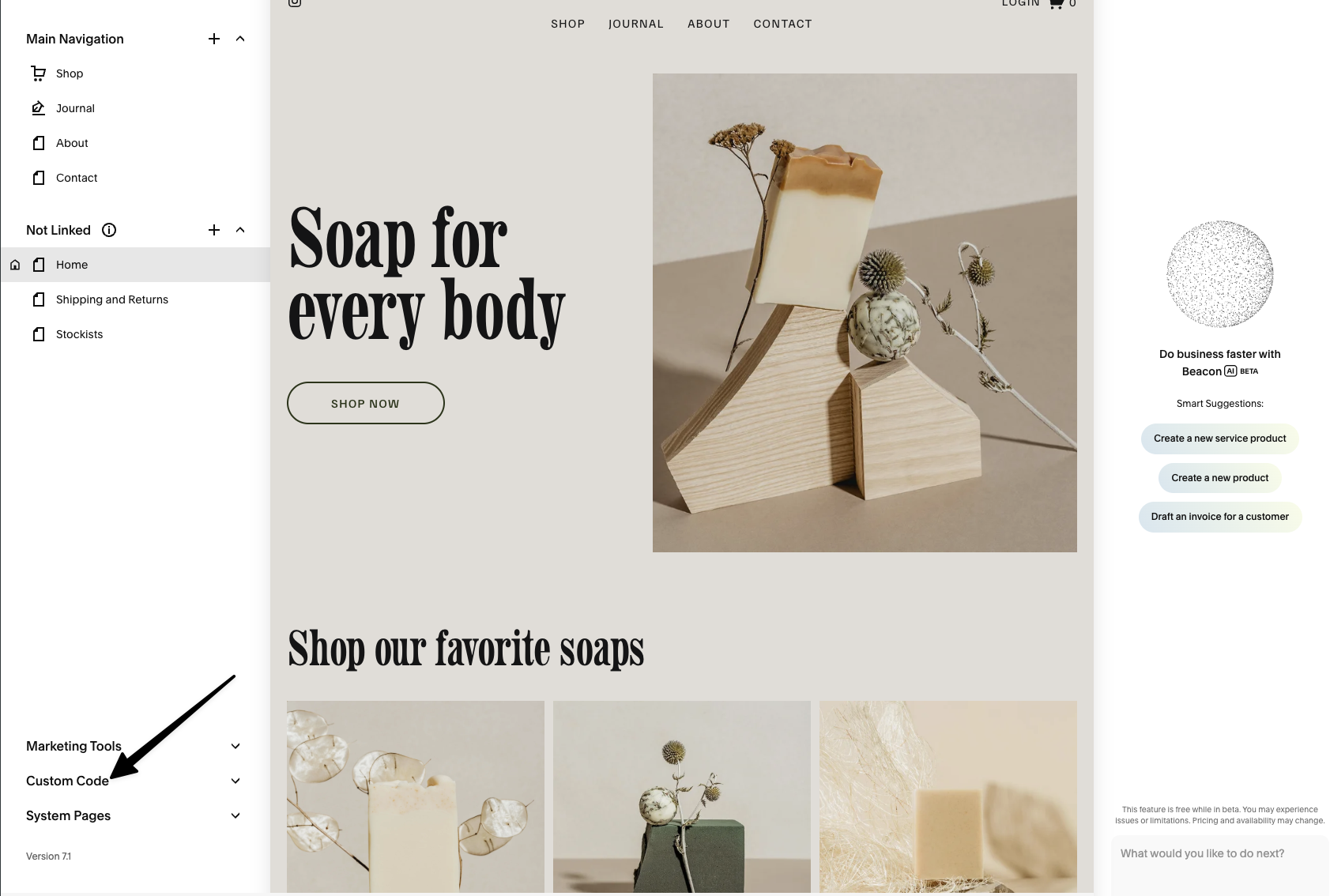
- 4
Under Custom Code, click Code Injection.
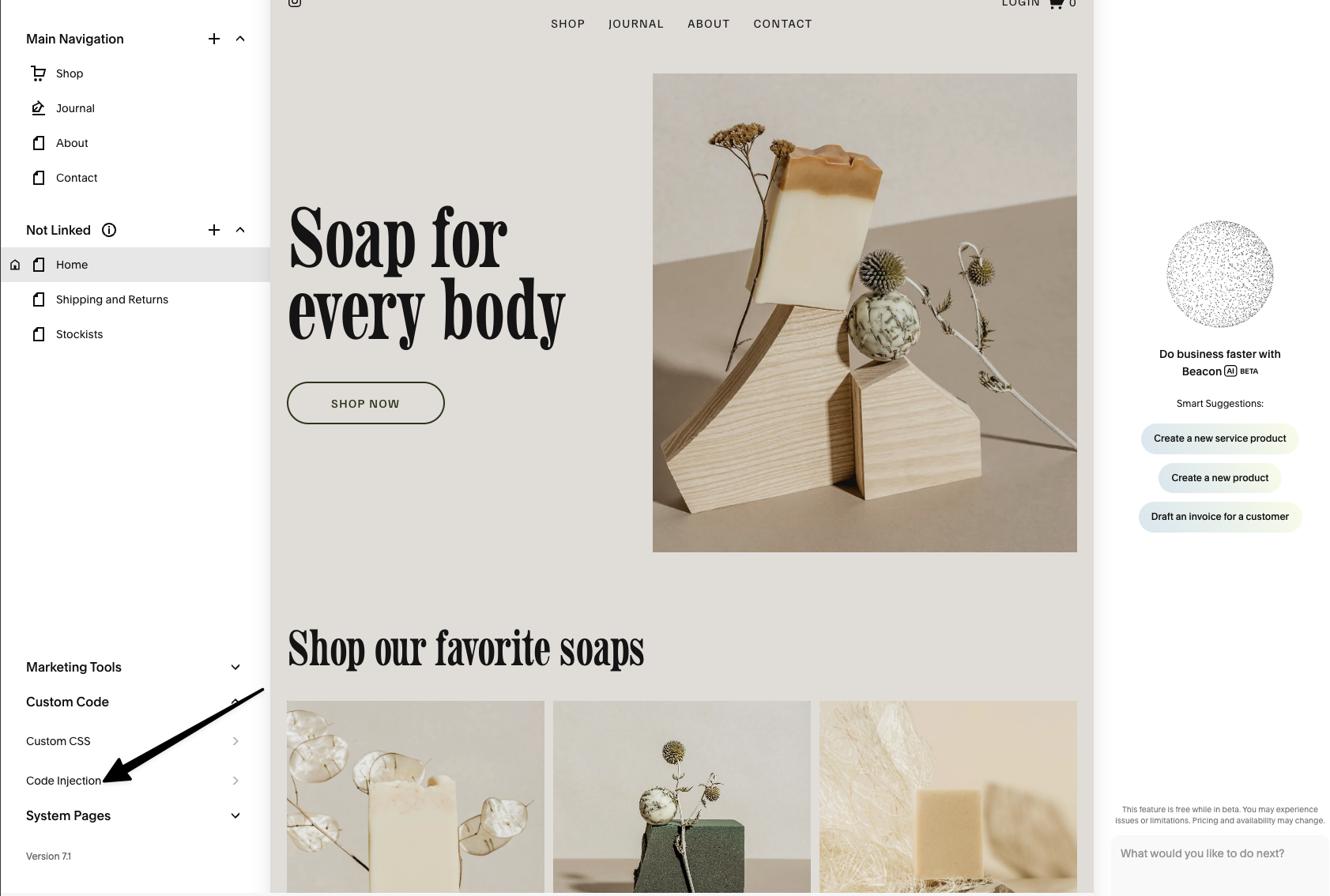
- 5
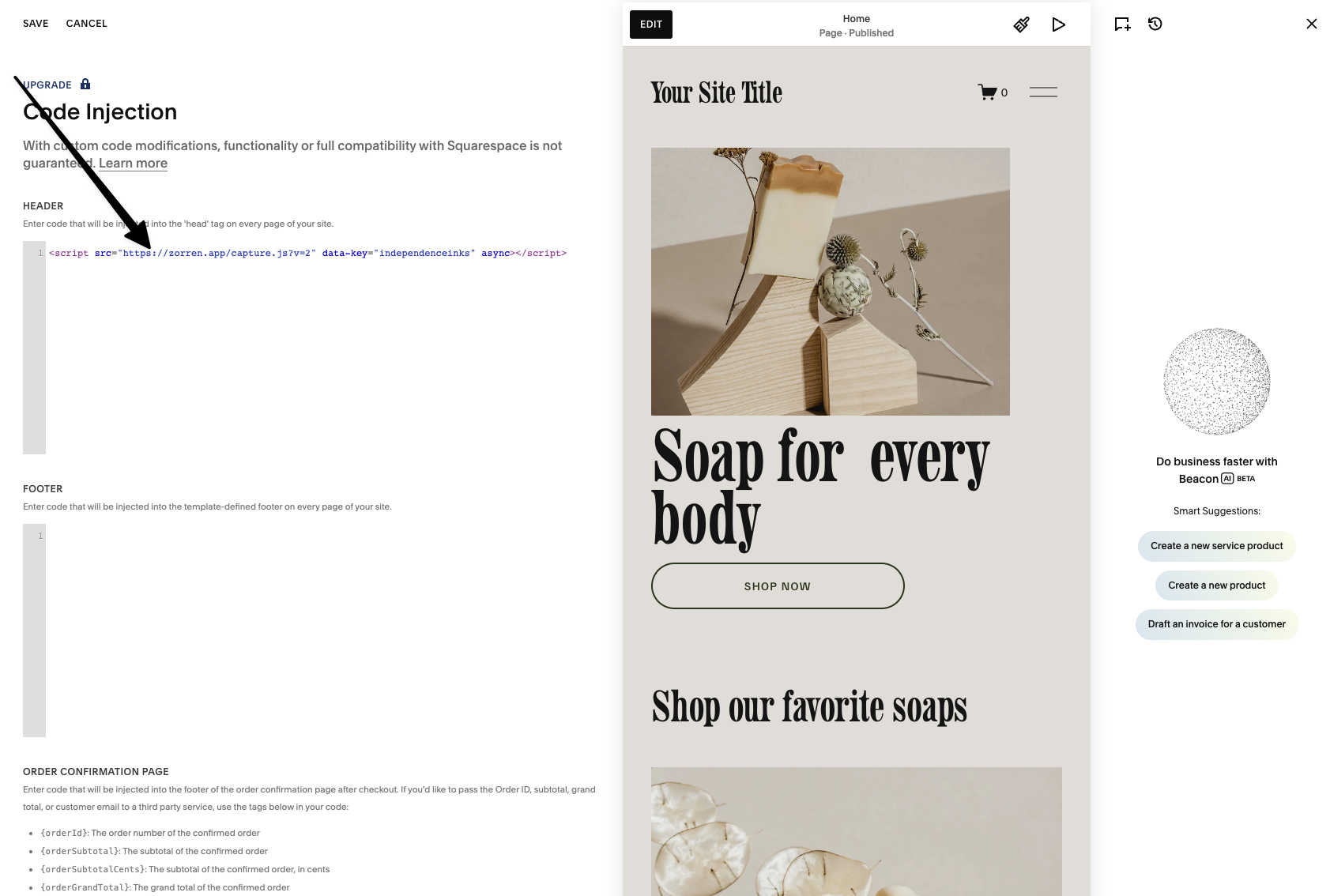
Paste the snippet into the Header box.
- 6
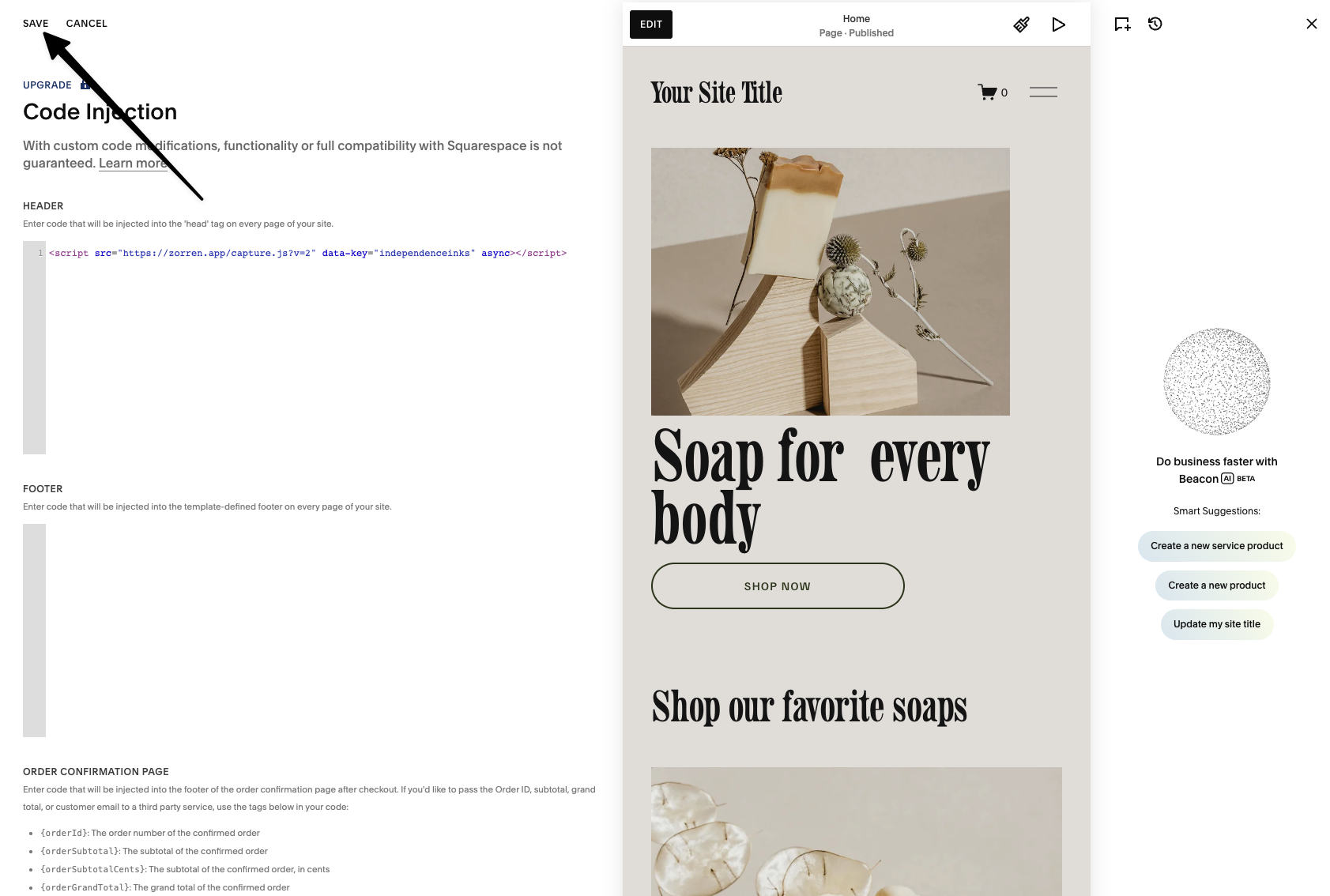
Click Save at the top left to apply the code.
The first submission is how Zorren learns your form. After you save the code, open Settings, then Capture setup, and click Start listening. Submit your form once with your own details, then save the field mapping when Zorren prompts you, so it knows which field is the name, which is the email, and so on. After that, every enquiry maps itself.
Stuck on a step?
Grab your snippet again from your setup page, or email us and we will walk you through it.